Pages

Labels

Showing posts with label INTERNET. Show all posts

Monday, September 30, 2013

HOW TO RUN ANDROID APPS ON WINDOWS PC

       Friends, craze of android applications is on the sky. These are making the people crazy. There are lots of useful android apps also and you can enjoy these useful apps on your android phone only, but with the help of this trick on way2hacking you can enjoy android apps on your windows pcs, here are some simple steps which will help you to make this trick working, so lets start…

STEP 1-
First of all download BlueStack app on your windows pc .

STEP 2.-
Now install it on your pc. And just run it.
STEP 3.-
Now click on any .apk file present on your pc.
Enjoy & share with your friends…

” ENJOY & WAIT FOR NEXT”

Friday, September 27, 2013

7 Wi-Fi Tweaks to Boost Your Speed

Chances are if you have a wireless internet connection at your home, you have had some trouble with the speed of the connection at least once before. That being said, a slow wireless connection can be frustrating to deal with. You are probably paying good money to your internet service provider, so slow speed is something you should not have to deal with, right? Well, the truth is wireless speed can be affected by a number of things. Luckily there are some Wi-Fi tweaks you can try that should help boost your speed and get you rolling in no time.

1. Reposition Your Router

The position of your wireless router plays a major role in the speed and strength of your wireless connection. If you are having trouble, you should try to reposition your router in a centrally located area, where the signal can equally reach each wireless device in your house. If your router is near an outside wall, try to move it closer to the middle of your house. Routers that are placed near outside walls can send some of the signal outside, which can risk your wireless connection’s strength and speed.

2. Purchase a Wireless Signal Repeater

Adding a wireless signal repeater to your home network can greatly increase the speed of your connection. A repeater works by extending your signal without having to add any additional wires. All you have to do is simply place the wireless repeater in a location that is between your router and your wireless device(s). It will instantly boost the wireless signal that is sent from the router to your devices, meaning faster speeds for you.

3. Install a New Antenna

Most wireless routers come standard with an omnidirectional antenna, meaning it broadcasts the wireless signal in a circular radius to reach various places in your home. If your router is in a perfectly centered location between all of your wireless devices, this is probably fine. But if your router isn’t perfectly centered among devices, you should think about replacing the existing antenna with a stronger one, known as a high-gain antenna. You can usually remove your old antenna and replace it with one of these stronger antennas to boost your signal strength, therefore increasing the speed of your connection. Another perk of a high-gain antenna is its ability to focus the wireless signal in any direction you prefer.


Increase Wireless internet Speed

4. Use One Brand of Equipment

You may not think that using different brands of equipment can reduce the speed of your wireless connection, but in reality it can. If you use different brands of equipment, your components may not work as efficiently. This is because many manufacturers of wireless networking equipment pre-install enhancements in all of their products. These enhancements can boost speed, but will only work if products from the same manufacturer are used simultaneously. If you are using various brands of equipment and your speed is suffering, this is definitely worth a try.

5. Reduce Frequency Interference

Many household electronics, such as cordless telephones and baby monitors, run at the same frequency as wireless routers. This means that these electronic devices can interfere with the wireless signal that is being broadcast from your router, which can affect the speed and performance of your connection. Check the box of your router to see what frequency it runs at, and try to avoid using other electronic devices that operate at the same frequency. You can also try to change the channel on your router to avoid frequency interference.

6. Check for Firmware or Driver Updates Regularly

The manufacturers of wireless routers and network adapters often release firmware or driver updates that can improve the function of your wireless connection. You can find and download these updates at the manufacturers’ websites. Updates are usually done to fix issues, add features, and strengthen your equipment’s performance. Check for these updates on a regular basis to make sure your firmware and drivers are always kept up to date.

7. Secure Your Wireless Network

If your network is not properly secured, neighbors could be using your signal. This can reduce the speed of your connection because you are in a sort, sharing the wireless signal. Set up secure passwords and some sort of wireless encryption that will prevent anyone else from accessing your wireless network. All of these Wi-Fi tweaks can greatly boost the speed of your wireless connection. If one of them does not seem to do the trick, try another or even a multitude of options. It may take a little time and patience, but once you figure out what works to speed up your connection, you will be happy you put forth the effort.

Thursday, September 26, 2013

Change Facebook Theme, Color & Appearance

Facebook is a social networking site which enables people to connect with friends and people around. That's how Facebook is usually introduced. However, Facebook is beyond the need of being introduced as almost everyone is on it. Despite its popularity, Facebook has one flaw; the default blue theme is really boring.

Some even consider it an annoyance while visiting Facebook. As Facebook does not allow users to change its theme like MySpace used to, users are left with no other option but to bear the theme Facebook wants them to use.

However, it is relatively easy to change the Facebook theme to a stylish one using an addon and custom themes which are available free of cost on the internet.

An example of the final outcome would be something like in the image.


Change Facebook Theme
This is the Ferrari theme. More themes are available for you to choose.


Requirement: The basic requirement for this to work is to have Mozilla Firefox or Google Chrome as your browser.

Steps to achieve this: If you use Google Chrome, click here. Mozilla Firefox users should carry out the following steps to successfully change Facebook theme.

  1. Open Mozilla Firefox and install 'Stylish' addon.
  2. Follow the basic steps to install the addon.
  3. Restart Firefox after successfully installing the Stylish addon.
  4. Login to your Facebook Account and click on the small 'S' button in your Firefox status bar.
  5. Click on "Find Styles for this Site" to open a new tab with free themes to use for Facebook.
  6. Click on any theme and a preview will be shown.
  7. If everything is fine in the previewed theme, click on "Install with Stylish" button at the top right corner of the page.
  8. A dialog box will open.
  9. Click on Install in the dialog box.

Steps for Google Chrome
  1. Install Stylish for Chrome from the Chrome Web Store.
  2. Navigate to Facebook.com and click on the S button.
  3. Click on "Find Styles for this Site" to open a new tab with free themes to use for Facebook.
  4. Click on any theme and a preview will be shown.
  5. If everything is fine in the previewed theme, click on "Install with Stylish" button at the top right corner of the page.

Stylish Button


facebook theme change

Install with stylish

Installing Ferrari theme for Stylish Firefox

Now whenever you open Facebook, it will show the theme that you have installed with Stylish instead of the boring old blue theme.

Wednesday, September 25, 2013

9 Free Web Hosting Providers You Should Try

The best things in life are free; but is this saying also true for web hosting providers? Yes, there are free web hosting providers that offer free web hosting. No monthly fees, no bills, no hosting packages; you get free web hosting services and even some perks that will help you create a professional web site for free.

Different free hosting sites have different features; but as it’s free, you can never tell if it offers reliable hosting features. This is why looking for free best hosting providers is like shopping for shoes; you need to find the one that will fit your individual business website needs.


Free Web Hosting


The basic feature of free web hosting services is web hosting with PHP & MySQL support; so your site can benefit from PHP–based web applications like Joomla, Mambo, WordPress, Drupal, SMF etc. Another feature that you may find is forced advertising; something that is very common in free hosting sites but not all of them have forced ads. Some of them give hosting with no ads at all.

Here is a list of free reliable web hosting providers to check out:

Hosting.eu.pn – they offer free hosting with absolutely no ads. You get 200 MB free web space and 4000 MB bandwidth per month. PHP4, PHP5, MySQL 5 database, Webmail access, FRP access, online file manager, Joomla support and FrontPage are some their features. When you subscribe, you get 5 free sub-domain names.


Biz.ht – this is a one of a kind reliable web hosting company that offers an Eco-friendly free green service plan. You get 250 MB of web space and 5 GB data transfer per month. Included are PHP5, MySQL, CGI, WordPress support and several free sub-domain names. They are powered by wind and 100% green energy.


Biz.nf – this is a business hosting site with no ads, no pop ups and no subscriptions. It provides 250 MB free web space, 5 GB monthly bandwidth, POP3 account, Webmail, FrontPage extensions, FTP support, PHP 4/5, MySQL, WordPress blogs, free sub domain names and many more perks.


AwardSpace.com – a no ads plan that provides 250 MB disk storage space, 5 GB monthly bandwidth, 5 Pop3/IMAP email accounts, PHP, MySQL, CGI, access to FrontPage and an efficient control panel.


Zymic – offers ad-free web hosting services giving you 6 GB disk space per account; plus you may have unlimited accounts per user. 50 GB monthly data transfer, FTP access, PHP, 3 MySQL databases and free sub domains are some of its features.


100webspace.com – they have a free web hosting plan that provides 100 MB web space, 3 GB data transfer, Webmail accounts, FrontPage support, PHP/MySQL, FTP support, efficient password protection and much more. The only disadvantage is that they have forced ads.


Xtreemhost – allows 2.5 GB disk space with 100 GB monthly data transfer, 10 MySQL databases, FTP support and more.


Hosting Engine – this free web hosting service offers 250MB disk space, 5 GB of monthly data transfer, domain hosting, latest MySQL versions and more.


Host-Ed – this is a free web hosting service which gives you 1000 MB free space, 10 GB of monthly bandwidth, 10 MB MySQL databases and more.

Wirelessly Transfer Files on Android Devices With Dropbox

As great as smart phones have become when it comes to handling our digital lives, there are still a few tiresome concessions we make for their use. One is having to plug our device into our computer in order to transfer files. Some manufacturers such as Apple have launched new services to alleviate that using cloud computing. Here is one way you can send files to your Android based phone completely free without the help of a USB cable.

Transfer files android wireless
Transferring files wirelessly on Android using Dropbox is easy

Step 1: On your computer, navigate to dropbox.com and download the application installer.

Step 2: Once the application has been downloaded, run it and an initial set up wizard should begin.

Step 3: Using the initial set up wizard, create a Dropbox account by entering your name, email address and computer name.

Step 4: A folder called Dropbox should now be available on your computer. Put any file you wish to wirelessly send to your phone in this folder.

Step 5: On your Android phone, open your App drawer and open the Market application.

Step 6: Search for Dropbox and install the application.

Step 7: Once installed, return home and re-open your App drawer and start up the Dropbox app.  

Step 8: Tap the existing Dropbox account button and log in using the account you just created in step 3.

You should now see any files you have in the Dropbox folder. Transferring additional files to your phone wirelessly is now as easy as dragging them into the folder and starting the app on your phone. Dropbox allows you to send up to 2GBs of data for free. Any files larger than that will either have to be transferred via hard connection or you’ll have to sign up for a 50 or 100 GB plan.

Have a functional Website as your wallpaper

Wallpapers are probably the first thing which we get bored of in our computers. Most of us have an image or Windows Dreamscene as wallpaper, but instead of having them, why not stand ahead of the crowd and have a functional website as your cool wallpaper in Windows?


A desktop showing a functional website as a wallpaper

All you need to do is:-
  1. Right Click on Desktop.
  2. Go to Properties.
  3. Click on Desktop tab. Select Customize Desktop.
  4. Under the Web tab, click New.
  5. Type the complete URL in the URL tab including 'http://'.
  6. Click OK, OK and OK again to apply the changes.

 Maximize the small window that opens on desktop and your desktop will look like one in the image.

Try it on your PC and show it to your friends to impress them. They will be surprised to see this new type of wallpaper on your computer. I did this on my friend's PC and he was too overwhelmed with this that he could not even speak a word.

Tuesday, September 24, 2013

I'm Feeling Lucky Easter Eggs on Google

Although Google feels the I'm feeling lucky button is not 'as useful', it can still be used to try some excellent 3rd party Easter eggs that are a direct result of Google bombing (remember miserable failure and the whole George Bush case?).

While I have already written about some of these, I missed some immensely popular ones. So, this is a roundup article of all those funny "first results" I did not include in the previous article. Before starting this list, I would advise you to disable Instant from your Google preferences. To get the most out of this article, go to Google's homepage, type in these phrases and hit the I'm Feeling Lucky button.


I'm feeling lucky Easter eggs on Google
Google Loco
Type Google Loco in the Search box, hit the I'm feeling lucky button and you will be taken to a Google homepage where each letter of the Google logo will continuously dance. Also, the search button and the I'm feeling lucky lucky button are written in the incomprehensible Wingdings font. What you type in the search box also appears in the same font. Even the search box changes its colour every time you type a letter.

Google Pacman
Google I'm feeling lucky Easter eggs
Not a Google bomb but an immensely popular doodle which Google used on its homepage on the 30th anniversary of Pacman, the arcade game in May 2010. Just type Google Pacman in the search box, hit the I'm feeling lucky button and you will be taken to the Google Pacman page. You can use your arrow keys to start playing the game. To play in 2 player mode, hit the Insert Coin button. W, S, A and D keys will control the second player.

 Google Guitar (Les Paul Doodle)
Another very popular doodle which Google featured on its homepage to mark the 96th birthday of Les Paul. This flash and JavaScript based doodle allows users to not only play tunes by holding down the guitar and twanging its strings but also to record them. It also gives a link to share the recorded tunes with your friends. Just use the Google Guitar phrase or directly head over to Google Guitar.

Google Hacker
I'm feeling lucky
Ever wondered what Google would look like if it was hacked? Google Hacker can give you an idea of such a scenario. Just use the Google Hacker phrase and you will be taken to a Google homepage entirely in the leet language ( the language supposed to be used by hackers), where Normal Search is n0rM4L s34rCh, and the I'm feeling lucky button is "Eye Am ph33|1n6 |u(ky." This is an official Easter egg by one of those crazy Google engineers.

Google Weenie
Do you get angry at websites with extremely small fonts? Google weenie will definitely make you angry then. Type this phrase in the Google Search box and you will be taken to a Google homepage where everything decreases in size until it becomes a bit too small to read. This website is the exact opposite of Epic Google where everything grows in size.

Google Magic
I'm feeling lucky Easter eggs on Google
Do you like magic? Here's a trick to impress your friends with. Type in Google Magic in the Google search box and hit the I'm feeling lucky button and you will be taken to a special Google homepage. On this page, cover the two O's in the Google Logo with your hand and click anywhere on the page. Wait for sometime (5 seconds). You can say some magic words to add effect. Remove your hand and you will be surprised to see that the two O's have disappeared. Again cover the two O's and click anywhere on the page. Again wait for 5 seconds and the O's will magically reappear. A third click however will take you to the actual Google homepage.

Search Google in different colors
Are you bored of Google's default color scheme and want to try something different? Then search Google in different colors. Just use the word Google followed by your color and hit the I'm feeling lucky button and you will be taken to a Google homepage in that paricluar color. (e.g: Google Pink, Google blue etc.)

Some more I'm feeling lucky fun
In order to allow you to fully enjoy the surprise, the following keywords haven't been provided a detailed description. Just type them in the search bar and hit the I'm feeling lucky button, or alternatively click on the first search result.

Google Flight Simulator Google Gothic Goglogo Google Reverse
Google Piglatin Google GodEwmew FuddGoogle Bork
Pigeon Rank Google KlingonGoogle ChurchThe Google Book
Mental Plex Google GulpGoogle TiSPCADIE
gDay with MATE Translate for AnimalsGoogle PondG.C.H.E.E.S.E.
Funny Google "Googlo"Google BlackleGoogle Variations

Google - I'm Feeling Lucky Tricks & Jokes

Google is the search engine of choice for most users. This is well represented by the fact that Google averages one billion unique visitors every month. A reason for this popularity is Google's characteristic to integrate simplicity with usability.

Another major reason for this popularity is Google's minimalistic homepage, which consists of a search bar and two buttons, Search and I'm Feeling Lucky. We all know what the search button does, it takes us to a search results page consisting of top ten results that match our query. The "I'm Feeling Lucky" button on the other hand takes you to the top ranking page in the search results for a particular query.

Im feeling lucky

Some webpages use this behavior to create some amazing and funny results. Here is a list of few such keywords that have some funny websites at the first position in Google. To use these tricks, open Google's homepage, type in the phrase and hit the I'm feeling lucky button. To use the I'm feeling lucky button, you have to disable Google Instant.

Google Gravity
I am feeling lucky, Google
The force of gravity is non-existent in cyber space. Google gravity makes you realize how Google would have been if gravity had been effective on the internet as well. Just type Google gravity in the search bar and press the I'm feeling lucky button. This will take you to the Google gravity page which, at first look, might appear to be the Google homepage itself. Wait for a few seconds and you will realize why this Chrome experiment is called Google gravity. Although the website lists it as a Chrome experiment, it works on Mozilla Firefox as well, although it does not work on IE8 and previous versions of IE.

Google Sphere
Want to see images on Google dance in circular motion? Google sphere is the phrase for that. This phrase will take you to the Google sphere Chrome experiment. Google sphere is a modified version of Image search that adds a bit of fun to your regular search. This Chrome experiment, just like the previous one, works on Chrome, Firefox and IE9.

Epic Google 
Epic Google will take you to a growing version of Google that will continue to increase in size until it becomes too large to read.

I'm feeling lucky tricks
Enable Pirate language in Google
Remember the Facebook Pirate language trick? Google too has their own pirate version to compete with that of Facebook's. Just use the Google Pirate phrase or directly head over to Google Pirate.

Google Rainbow
This phrase will take you to a Google search homepage in which each element changes its color rapidly to create the rainbow effect. The search result page obtained for queries is very annoying too as it contains a very loud color combination of red, blue and green.

Annoying Google
Want to get annoyed while searching on Google? This one is for you. This phrase will take you to a Google search homepage with each word having alternate capital and small letters making everything a bit too hard to read.

2204355
Are you already familiar with the age old internet prank called rick-rolling and want to discover something new? Chicken rolling is for you. Try this new way of trapping unsuspecting internet users by typing the code 2204355 in the Google search box and hitting the "Lucky button."

LOL Limewire
Type in LOL Limewire in Google and you will be taken to a .swf file claiming that you are a pirate and telling you to "do what you want cause a pirate is free." Funny!

Google funny feeling lucky tricks
Find Chuck Norris
This one is for all fans of Chuck Norris jokes. We all know that you don't find Chuck Norris, he finds you. The find Chuck Norris phrase proves the fact further.

Who is the cutest?
Want to know who is the cutest person in the world? Just use this phrase. This one will definitely make you smile.

Most of these websites are not owned by Google. They were created independently to achieve these effects.

Google Tricks, Easter Eggs & Secrets

Google's engineers love to hide some pretty cool tricks at the most unexpected places. Add to that Google's policy of giving 20% of working time to its engineers to do what they want, and you have a search engine filled with lots of entertaining Easter eggs and tricks.

Sadly, most of these tricks are still a secret, but every now and then, Google employees leak these cool insider pranks and the whole world gets to know about them. Here, I have created a list of all such known Google tricks and Easter eggs that are still "working."

Google Tricks

Kerning
Kerning means adjusting the spacing between characters. So, how would you expect Google to describe it? Literally, off course. When you search Google for Kerning, the spacing of the word Kerning is changed as compared to that of other words. This only works with personalized results disabled.

Conway's Game Of Life
Conway's Game Of Life is a game that indicates how cellular life evolves based on the initial configuration. If you search Google for Conway's Game of Life, you will get a results page with the game running in the background.

Jason Isaacs
Just search for Jason Isaacs and Google will return a page saying Hello to him. This only works on Google UK. This is a reference to Kermode and Mayo's Film reviews which greets Jason with hello every week.

Bacon Number {Actor Name}
Kevin Bacon is a famous hollywood actor who was quoted as saying that he has worked with everybody in hollywood or somebody who has worked with them in 1994. This led to many websites being launched about his claim in 2007. Bacon seeing this immense response launched a charitable website called Six Degrees, which is based on a theory that everyone in hollywood has worked with Kevin Bacon through a chain of six acquaintances or less. An actor gets as many degrees as he is distant from Kevin Bacon's movies in terms of people in the chain of acquaintances.

Google too has now involved Six Degrees of Bacon in its search results. For example, searching Google for Bacon Number Johnny Depp gives Depp's Bacon number to be 2.

Google knows how to celebrate the holidays
Searching Google for a holiday will make Google return a page decorated with items representing that holiday. For example, searching Google for Christmas returns a page decorated with Christmas lights. This also works for Kwanzaa, Hanukkah, Halloween and Festivus. These Easter Eggs based on a festival are only activated when that festival is near.

Zerg Rush
Search Google for Zerg Rush and you will see the O's of Google attacking the search results page. They will attacking every result one by one. There is a health bar which indicates how injured a search result is. You can also kill these O's by clicking on them. They also have health bars which indicates their health. You get points on the basis of how many O's you kill. The aim of this game is to beat as many O's as possible.

Zerg Rush Google Easter Egg

Askew or Tilt
Ever had the chance of searching Google for Askew or Tilt? If you have, then you already know what comes up. If you haven't, do it now and you will see the search results page literally tilt to give you a better idea of what these words mean. This will work only if you use latest browsers which support HTML5 and CSS3. So, Internet Explorer users, use Firefox, Google Chrome or Safari for a while to use this.

Do a barrel roll
Google Tricks & Easter Eggs
'Do a barrel roll' in its true sense means to do a 360 degree spin. Google takes practical demonstrations way too seriously for this one and literally spins the search results page to give you a clearer idea of the meaning of this phrase. Don't believe me? Go search Google for Do a barrel roll now and see your world turn around.

This Easter egg is apparently a tribute to Star Fox, a video game series developed by Nintendo, because searching Google for Z or R Twice also does the barrel roll, just like in Star Fox. Many bloggers interpreted a lot of different things from this, but Google clarified that this fun trick was created by a Google Engineer solely for the purpose of entertaining users along with showing the power of new HTML5 and CSS3 technologies. Like the previous Easter egg, this will only work in modern browsers.

Binary, Octal and Hexadecimal Number systems
Another one of those literal Google Easter eggs. If you search Google for "Binary", "Octal" or "Hexadecimal" (without quotes) with Search Plus Your World disabled, Google will show the number of results in the same number system. For example, searching Google for hexadecimal will return the number of results like in the image below.

Octal, Binary & Hexadecimal

Recursion
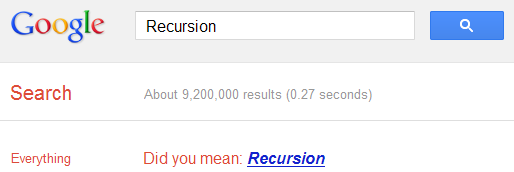
The "Did you mean?" feature of Google often helps many users to get to the right results when they type something different from what they intended to search. If you search Google for recursion, the same feature takes you to an endless loop of clicks all linking to the same results page thereby completing recursion, which occurs when something calls itself. Seriously geeky.

Recursion Google Easter egg

Anagram
Another one of those "Did you mean?" Easter eggs. Search Google for Anagram and Google will instantly ask whether you meant "Nag A Ram" which is one of the anagrams of the word "anagram." Google really shows their word-playing skills with this one.

Asking Google to define Anagram makes Google ask if you meant nerd fame again.

ASCII Art
Are you a fan of ASCII art? Google surely is. Search Google for ASCII art and Google will greet you with a search results page having an ASCII version of the Google logo at the place where normal logo should have been. This Easter egg does not work anymore. When it did work, it looked like the image given below.
ASCII art Google Easter Egg

Google Calculator Easter Eggs: The loneliest number
Google Secrets
Do you know which is the loneliest number? Ask Google Calculator. Search Google for the loneliest number and the in-search Google Calculator will give one as the answer, which apparently is a tribute to the Harry Nilsson's song "One."

Once in a Blue Moon
Google Tricks Easter Eggs
Ever wondered how much is 'once in a blue moon'? You must have heard this phrase often but Google calculator will give you the exact value of this phrase and surprisingly, it denotes frequency rather than time. Go search Google for this to get "1.16699016 × 10⁻⁸ hertz" as the answer.

The number of horns on a unicorn
Want to know the number of horns on a unicorn? Google calculator can help. Searching Google for the number of horns on a unicorn will give 1 as the answer.

Answer to the Ultimate Question of Life, the universe and everything
Google Easter eggs
Google is omniscient. Even the "answer to the ultimate question of life, the universe and everything" is known to Google. Just search Google for the above phrase and Google calculator will give you an answer. What are you waiting for? Just go to Google and find the true meaning of life.

[Pause to give you the time to search]

Surprised by the answer (42)? This is a reference to The Hitchhiker's Guide to the Galaxy, a popular novel based on a radio show (by the same name) of the late seventies. Google engineers surprised you with these tricks, didn't they?

How to Access Blocked Websites, View Restricted Sites

Most of us find ourselves in situations where a website we wish to visit is blocked by a software or by our ISP (Internet Service Provider). So the question arises, how can we access blocked websites? The answer to this is simple: Proxy websites. Before going into details, let us know a bit about these proxy websites. 

Proxy Websites

A proxy website acts as an intermediate source between the user and server the site being contacted is hosted on. Users send requests to proxy websites which conveys them to the site's server. The reply received by the proxy website is then forwarded to the user's computer. This gives an impression to ISP's and blocking software that the user is visiting the proxy website but in reality, s/he is visiting the site which was blocked. Thus, proxy servers also provide extra security to users by hiding their online activities from their ISP's.

Acess Restricted Websites

Commonly Blocked Web Sites

The sites which are most commonly blocked at workplaces, schools and offices include websites like Facebook, Orkut, Blogger (blogspot), Google News, Typepad, eBay, MySpace, YouTube, MSN, Yahoo! Messenger, Bebo, Google Talk, Gmail, Photobucket, AOL AIM, Flickr, Twitter etc. In some countries, social bookmarking sites like Digg and Reddit are also blocked. Countries like Saudi Arabia, Pakistan, China have even blocked access to mainstream media websites like The New York times. A proxy website can be used to easily access these blocked websites. As proxy websites hide a user's location, they can also be used to access popular websites which are restricted to particular countries and block users from other countries from visiting them.

Types of Proxies

There are two types of proxies. First, there are web proxies which have an interactive interface; and second, the proxy servers which work on the basis of IP Addresses and port numbers. Proxies can also be segregated on the basis of anonymity into Anonymous, Transparent and High Anonymous depending upon the amount of privacy they provide.

How to Find Proxy Websites and Proxy Servers

A simple Google search containing the word "proxy websites" is likely to return a lot of useful results. However, most of them are likely to be lists containing proxy servers which you can setup using their IP Address and Port Number. So, in order to find interactive proxy websites, you will have to search for something like "Facebook Proxy Server" or "Orkut Proxy Server". A search like this is most likely to return interactive proxy websites with which you can access your blocked website by simply entering the URL in URL field. If you want additional security and anonymity, you can opt for a paid proxy server.

If you do not want to search, here are few popular free proxy websites you can use:-
  1. http://www.hidemyass.com
  2. http://www.spysurfing.com/
  3. http://proxify.us/p/

How to access Blocked websites

How to Setup Proxy Servers using their IP Address

If you wish to visit your blocked website using a web proxy, you do not need any setup. However, if you wish to use a proxy server that can only be accessed by using its IP address and port number, you must configure your browser to use it. Follow the instructions given below to setup this type of proxy in your browser:-

Google Chrome and Internet Explorer Users

Google Chrome uses the same network settings as Internet Explorer. So, in order to configure Google Chrome to use a proxy server, you have to configure Internet Explorer. You can configure a proxy server in Internet Explorer by following the instructions given below:-

  1. Start Internet Explorer.
  2. Click on Tools, Internet Options.
  3. Click on Connections Tab, select your Network Connection and click on Settings.
  4. Check on Use a Proxy Server for this Connection.
  5. In the Address field, add the IP Address of your Proxy server. In the Port field, enter the Port Number.
  6. Click on OK and OK again.

Mozilla Firefox Users

Mozilla Firefox users can configure their browser to use a proxy by following the instructions given below:-

  1. Start Mozilla Firefox.
  2. Click on Tools, Options.
  3. Click on Advanced Tab.
  4. Click on Network tab.
  5. Click on Settings.
  6. Encircle Manual Proxy Configuration.
  7. Enter the IP Address and Port Number at the appropriate place. In most cases, it will be a HTTP server.  
After you have successfully configured your browser to use the proxy server, you will be able to access blocked websites whenever you browse the internet with your browser.

Ways to Unblock Restricted Websites

One way of accessing blocked websites is through the use of proxy websites. However, it is not possible to use them to unblock each web site. If the website you wish to visit falls in this category, then you must use the methods given in this article. Beforehand, I would like to make it clear that different websites are blocked differently.

So you must try all of the tricks given before reaching the conclusion that you cannot access a website. Some of the tips given in this article can also be used to prevent your surfing and IP Address from being logged. So, let us begin:-

Cache

Google and other search engines maintain a cache of web pages that are spidered by their robots and are present in their index. This cache(snapshot) of the web page is saved by Google as a back up in case the original page is unavailable. This can be accessed by clicking on the cached link besides the search results that appear for search queries. The cached version of the page might not be the latest version of the website but nonetheless, you can still use it to visit the web site of your choice. Another way to view the cached version of a web page is by using the 'cache:example.com' search query.

blocked websites Google Cache

Internet Archive( Wayback Machine)

Internet Archive is a non-profit organization which stores websites in an archive form using which you can see how the website looked at a specific time. This is similar to a saved copy of the website on your local hard drive. Just visit Wayback Machine and enter the address of the web site you wish to visit to see if a cached copy of it is available. This archive can also be used to access websites that are suspended or down.

Site Wayback Machine Internet Archive


Translation Services

Translation Services like Google Translate and Yahoo! Babel Fish can also be used to unblock websites. Enter the URL of the website in the translation field. Select a different language than the one on the website in the "Translate From" field, and the language you read in the "Translate To" field. e.g. If the web page is in English, select an other language like Spanish in the 'Translate From' field and English in 'Translate To' field. This method can be effectively used to access restricted websites.

Google Translate's Access

Changing HTTP into HTTPS

This is the fastest way to gain access to restricted websites. To use this method, just change the 'http:' in your URL to 'https:'. This can confuse the software which is blocking the site you wish to visit. Although this might not work every time, it still is a handy trick to tackle not so complex website blocks.

accessing using HTTP to HTTPS

IP Address of the Website as Address

This is probably the most effective way to access blocked websites. To use this method, first you need to find the IP Address of the website you wish to visit. You can use the command prompt and type 'ping mydomain.com' to get the IP Address of the restricted website. Now that you have the IP address of your website, just enter it in the address bar of  your web browser and press Enter. It is highly probable that the website you wanted to visit will be unblocked.

blocked ip address of the website

How to Unblock Websites at School, Work, Home or Anywhere

Internet Censorship has grown drastically over the past few years with countries like China, Pakistan, Saudi Arabia, Iran taking the lead over other governments in extending internet censorship to almost all sources of free unbiased information. Some schools and offices also prevent users from accessing certain websites which they believe are of no use in the respective areas. Governments sometimes enforce censorship on all forms of print and digital media like newspapers and television. China is known to have even forced Google to filter its search results. In such times, sometime you may need to access a website that is blocked. This article explains how.

Which websites are most commonly Blocked?

Unblock Websites
The most commonly blocked websites include websites about pop culture, health, medicine, women, religion and politics. Social websites that are often blocked include Blogger (Blogspot) blogs, Google News, Facebook, Orkut, MySpace, Bebo, Flickr, Hulu, LinkedIn, Yahoo! Messenger, Typepad, eBay, WikiLeaks, Digg, Reddit, Technorati, StumbleUpon, Delicious, YouTube, DMOZ etc.

Access Blocked Websites at School, Work or Anywhere

There are many genuine reasons for which you might visit blocked websites at your school or office. Given below are the many ways you can use to regain access to the blocked website you wish to visit.

1. Cache: Many search engines maintain a cache of web pages indexed by them. You can search for a website on Google , Yahoo! or Bing and click on the cached link that is given next to the result. To load the web pages more quickly, you can visit the text-only version.

2. Using Google Mobile Search: Google Mobile Search acts as a proxy which you can use easily. It removes all the CSS styling and JavaScript and presents a stripped down version of the web page to the user from it's own server. Due to this, the blocking software feels that you are visiting Google, whereas in reality, you are viewing the blocked website. It also breaks larger pages into many smaller ones. Go to Google Mobile Search.

3. To access a blocked website, you can enter the IP address instead of the URL in your browser's address bar. This can bypass most basic forms of website blocks. Although if the blocking software maps the IP address to the website domain, the website will still remain blocked. You can find the IP address of the website by pinging the website domain name in command prompt and noting its IP address. Execute ping www.tweakandtrick.com in command prompt to ping www.tweakandtrick.com.

4. Access Blocked Websites using Google Translate or Yahoo! Babelfish. You can also use translational services to get on blocked websites. To do so, enter a language different from the website in the 'From' field and English in the "To" field. You can also use this method to bypass software that block websites on the basis of specific keyword mentions. Just translate the URL you wish to visit in a different language to overcome the keyword block.

5. Proxy Websites: There are many proxy websites (anonymizers) which open blocked websites on their servers and present the data to you. This hides from the service providers the address of the website you are trying to visit. Few popular free ones include HideMyAss, Anonymouse and KProxy.

6. Use RSS Readers for Accessing Restricted Blogs: All blogs syndicate their content via RSS feeds which you can subscribe to in web based RSS Readers like Bloglines to access blocked content. For example, the RSS feed of this blog is located at http://www.tweakandtrick.com/rss.xml.

7. Use IP Address to Decimal Conversion: If you cannot access blocked websites, you can enter the decimal number of the URL's IP address to get access to restricted websites. Search Google for IP to Decimal + IP Address of the banned website and Google will convert it into decimal. Enter that into your browser's address bar and see if the blocked website opens.

8. Create a 2 layered Unblocker: Just go to Google Translate or Yahoo! Babelfish, open any proxy website inside it and then use that proxy website to access your blocked website. In this way, you can achieve two layered website unblocking.

9. TOR: TOR or The Onion Router is a free software that protects the privacy and security of its users by channeling data through multiple nodes so as to prevent the orginal data from being unscrambled. Although browsing through TOR is a bit slow, it is one of the most effective ways of bypassing restricted websites.

10. Nyud.net: To unblock blocked websites, just add nyud.net to their URL. For example, if this blog (www.tweakandtrick.com) is blocked, you can visit it by going to www.tweakandtrick.com.nyud.net.

11. Opera Mini Simulator: Opera offers a web based version of Opera Mini to allow users to get an experience of what it is like. You can use this demo version to access most websites that offer their mobile versions. Even websites that do not offer a mobile version can be viewed through this, although the quality of the results obtained may not be that good.

12. Changing DNS servers: A common way of blocking websites is preventing DNS servers from giving the locations of the blocked website's servers. In such a scenario, changing your DNS servers to OpenDNS's or Google's DNS will be your best option to get over the block. As an additional advantage, this will also increase your internet speed.

13. VPN Software: VPN or Virtual Private Network Software can be described as a tunnel under the public network that offers more anonymity than proxy websites as it also encrypts the data transferred by the blocked website thus, offering complete anonymity when you access your favorite web applications. Although most VPN software are available as paid software only, HotSpotShield is a popular free alternative.

14. IP Hiding Software: Sometimes, websites block users on a particular IP address from visiting themselves. In such cases, free IP hiding software like UltraSurf can be used to visit them. While free software offer very less features as compared to paid ones, they are still effective for overcoming most common blocks.

15. Edit your host files: Some malware and blocking software edit your host files and add a website's address to prevent you from visiting that website. In such a scenario, you can edit your host file with Notepad by visiting “C:\WINDOWS\system32\drivers\etc” if C is your system drive and remove that website. In Windows Vista and Windows 7, a warning from UAC might be displayed while editing your host files.

Monday, September 23, 2013

Track Anyone Just By Sending Mail


Track Anyone Just By Sending Mail    Well u wanna track ur victim or want to get his ip, location, browser settings, language or timings…. all u have to do is get his e-mail id…
Once u have it.

Go to 

Register there… Once registered . . . send a mail to ur victim by the email id u registered at readnotify.com
But before sending the mail just add “.readnotify.com” with the victims id.. for example

xxxxx@yahoo.com.readnotify.com

and then send it… when ever victim opens it his all the info will be mailed to u.
which can b very useful for the hackers.
Note = U can also change the settings in

Make free calls to 40 Countries (India Included)


Hello Friends,
With Tuitalk, You can make free international calls to over 40 countries. And yes India is included in this list. Tuitalk offers about 12 minutes of free calls each day (trick being to register with your extended profile).
TuitalkEach day Tuitalk gives its users 12 min of free calls. Yes you can make free calls to India worth 12 minutes every day. Your account is automatically credited with 12 min every day.
Here what you have to do.

1. Register at Tuitalk.
2. Activate your account and remember to fill your extended profile.
3. Now download Tuitalk voip softphone.
4. Login into voip softphone. You will see the free minutes.
5. To make calls to India dial (country code+number)eg 91989XXXXXXX.
6. You will be shown a small advertisement, then your call will be connected.
7. One more thing, the calling minutes are not even rounded off (no one minute rounding). So you get full 12 minutes talktime. Its actually very good..!!

How To Recover Hacked EMail Account

It can be a real nightmare if someone hacks and takes control of your email account as it may contain confidential information like bank logins, credit card details and other sensitive data. If you are one such Internet user whose email account has been compromised, then this post will surely help you out. In this post you will find the possible ways and procedures to get back your hacked email account.

For Gmail:

It can be a big disaster if your Gmail account has been compromised as it may be associated with several services like Blogger, Analytics, Adwords, Adsense, Orkut etc. Losing access to your Gmail account means losing access to all the services associated it with too. Here is a list of possible recovery actions that you can try.

Step -1: Try resetting your password since it is the easiest way to get your account back in action. In this process Google may ask you to answer the secret question or may send the password reset details to the secondary email address associated with your compromised account. You can reset you password from the following link
If you cannot find success from the Step-1 then proceed to Step-2.
Step-2: Many times the hacker will change the secret question and secondary email address right after the account is compromised. This is the reason for the Password Reset process to fail. If this is the case then you need to contact the Gmail support team by filling out the account recovery form. This form will ask you to fill out several questions like
1. Email addresses of up to five frequently emailed contacts
2. Names of any 4 Labels that you may have created in your account
3. List of other services associated with your compromised account
4. Your last successful login date
5. Account created date
6. Last password that you remember and many more…
You need to fill out this form as much accurately as possible. It is obvious to forget the dates of last login, account creation and similar terms. However you need to figure out the closest possible date/answers and fill out this form. This is your last chance! The more accurate the information filled out in the recovery form, the more the chances of getting your account back. You may reach the account recovery page form the following link

/>

For Yahoo and Hotmail:

Unfortunately for Yahoo/Hotmail there is no second option like filling out the form or contacting the support team. All you need to do is either answer the secret questions that you have setup or reset the password using the secondary email option. 
To initiate the password reset process just click on the Forgot password link in your login page and proceed as per the screen instructions.

Increase Your Internet Speed By 20%

Microsoft reserves 20% of your available bandwidth for their own purposes like Windows Updates and interrogating your PC etc.
You can get it back, Follow the Procedure :
Click Start then Run and type “gpedit.msc” without quotes. This opens the group policy editor.
Then go to:
–> Local Computer Policy
  –> Computer Configuration
   –> Administrative Templates
    –> Network
     –> QOS Packet Scheduler
      –> Limit Reservable Bandwidth.
Double click on Limit Reservable bandwidth.
It will say it is not configured, but the truth is under the ‘Explain’ tab i.e.” By default, the Packet Scheduler limits the system to 20 percent of the bandwidth of a connection, but you can use this setting to override the default.”
So the trick is to ENABLE Reservable bandwidth, then set it to ZERO. This will allow the system to reserve nothing, rather than the default 20%.
It works on Win XP, Windows 7, Windows 8 and as well as Win 2000.

How To Open And Access Blocked Sites In India

Airtel And Reliance Internet Service Providers Blocked Some Torrent And Other Sites In India Since 16th May. They Blocked Majority Of Popular Torrent Sites And Other Popular Sites Which Are Leading Sites And Has Many Visitors From India.
The Reason Behind This Sites Blocked Is A Court Ban, Following John Doe Order Taken By Copyright Labs, Chennai To Prevent Piracy Of Tamil Films : Dhammu (Tamil) and 3 (Telugu).
Upon Visiting Any Of Website Lister Below Airtel Or Reliance Costumers Get Any Of Following Message “Access to this site has been blocked as per Court Orders” Or ”This website/URL has been blocked until further notice either pursuant to Court orders or on the Directions issued by the Department of Telecommunications”. This Ban Seems To Region Specific As Some Users Are Able To Access This Blocked Sites In India From The Mentioned ISP’s.
Access Blocked Sites
List Of The Sites Blocked In India
Vimeo.com
Dailymotion.com
Xmarks.com
Pastebin.com
Torrent Sites :
Isohunt.com
Thepiratebay.org | Thepiratebay.se
Torrentz.eu
Kat.ph
Torlock.com
Kickasstorrents.com
Extratorrent.com
Torrentfunk.com
Fenopy.eu
And Many More…
How To Open And Access Blocked Sites :
Many People Uses Proxies And VPN’s To Access This Sites. But It’s Not The Easy Option Nor Suitable For Everyone.
So Here Are Simple Hack To Access This Sites Easily.
By Placing https Instead Of http You Can Access Any Of The Blocked Sites.
As Example :
Use https://vimeo.com Instead Of http://vimeo.com
https://xmarks.com
https://isohunt.com
https://kat.ph
https://torrentz.eu
https://thepiratebay.se

Tuesday, September 10, 2013

How to Backup your Gmail Account


This past weekend over 150,000 Internet users woke up to find their Gmail inboxes, contacts and chat conversations gone. The issue, according to Google, was caused by a storage software update that introduced an unexpected bug. But while the company has since begun restoring data from tape backups and will likely offer some form of compensation where applicable, the incident served as a reminder that no matter how reliable some cloud-based services are, they are certainly not infallible, and thus it might be prudent to have your own backup ready just in case things go amiss. There are numerous ways to backup your Gmail data and deciding which way to go will largely depend on the level of effort you want to put into it. You could simply setup Gmail to forward all your mails to another email account and call it a day, for instance. But there are also a handful of other options that offer a bit more flexibility and convenience.
Below, we've listed a few of them, so you can choose whichever best suits your needs.
Use a standalone backup program
Gmail Backup is a simple and easy-to-setup free alternative that does exactly what its name says. Upon installation, just type in your credentials and it will begin downloading all your e-mails, backing them up securely, and allowing you to restore them to your account should the unthinkable happen. The program is free and Windows-only. Their website seems to be down due to the increased load in the past few days, but you can download Gmail Backup here from our local mirror.
If you're willing to shell out $20, Gmail Keeper will back up Gmail messages or messages from a Google Apps Mail account as a .zip file to a local disk. It supports multiple accounts and even stores labels associated with each message, while those concerned about privacy can encrypt their mail and password protect it.
Third-party Web service
Backupify is a handy tool that automatically performs scheduled backups for a number of popular online services including Google Apps, Facebook, Twitter and others. You won't have to put too much effort into the whole backup process -- just supply the login credentials of the sites you want backed up and Backupify takes care of the rest. Be aware though that you're essentially moving your info from one cloud to another.
The site offers both free and paid accounts with varying limitations, but given the recent Gmail blunder, Backupify is taking the opportunity to entice new users with a coupon code "savegmail" for a year of free backups with one of their premium plans, so there's really no reason for not giving it a shot.
Use a desktop mail client
This is probably the most common approach and should take just a few minutes to set up. Gmail offers access to all your mail through desktop clients such as Apple Mail, Microsoft Outlook, Mozilla Thunderbird, and many others. The latter is free and available on all major operating systems, so if you're doing this for the first time and especially if you're only planning to use it for backups rather than as your primary client, then Thunderbird might be the way to go.
For those unfamiliar with the setup process: After signing into Gmail, click the "gear" in the upper-right corner, choose Mail settings, then load the "Forwarding and POP/IMAP" tab. Enable POP for all mail and set Gmail to keep its copy.
You'll then need to setup your desktop mail client to retrieve your emails. Google offers step-by-step instructions for a number of clients and Thunderbird's automatic configuration is usually spot on getting your settings right with just your username and password -- but make sure to use POP instead of IMAP for one-way message transfers.
Messages will be downloaded automatically each time you launch Thunderbird and stored into your profile folder -- which you can back up standalone as well for some added security. It's pretty straightforward, but for those who prefer to use the web-based Gmail interface, remembering to run Thunderbird or whatever desktop email client every once in a while might be more work than they're willing to deal with.

How to Reduce Your Monthly Wireless Bill: 12 Useful Tips

Wireless providers thrive on peddling a myriad of extra features and services on top of your basic service plan. Early nights and weekends, roadside assistance, mobile TV, hotspots and GPS are all fair game and can add anywhere between a couple of bucks to $10 or more to your wireless bill each month, per service.
What’s even more concerning is that many people don’t even look at their monthly bill. Checking your bill and eliminating some of these unnecessary perks can go a long way to putting some extra dough back in your pocket each month. Here are 12 ideas to help cutting back on your wireless cell and data plan:
1
Use Wi-Fi whenever possible.
A most obvious tip yet equally rewarding as well... using Wi-Fi whenever possible will help cut down on data usage, especially when streaming music or video to your smartphone. I realize that some may disable Wi-Fi when not in use due to extra battery drain but forgetting to turn it back on could be a financial mistake if you don’t have an increasingly rare unlimited data plan. Just use caution when submitting sensitive information over public hotspots and you should be fine.

2
Negotiate a lower rate.

Despite what you’ve probably been taught, everything is negotiable. Your mileage here will vary but you’ll never know unless you ask. This usually works best in person at your local authorized retailer, but deals can be arranged over the phone as well. One way to segue into a negotiation is threatening to take your business elsewhere. I had one wireless carrier offer me a high-end phone free of charge if I agreed to sign another contract. Normally I would have had to pay $200 for said phone but I got it free simply by mentioning I was interested in another carrier.

3
Ask for corporate / organization / educational discounts.
Thousands of companies, organizations and educational institutions have partnerships in place with wireless carriers to offer discounts to employees, members and students. The problem is that most people don’t know about these as wireless providers don’t exactly advertise them front and center.

Most simply require you to enter your organizational or school e-mail address to see if you quality. AT&T, Sprint, T-Mobile and Verizon all have discount pages for your convenience. I’ve personally seen discounts range from 10 percent to as much as 25 percent.
4
Evaluate wireless data usage.
True unlimited data is a rare commodity these days. As smartphones became more widespread, carriers quickly realized they could make more on average by charging less for fixed data packages and banking on the notion that at least some would go over their data allotment and have to purchase additional data at a much higher rate each month.

On the opposite end of the spectrum, there are those of us that are grandfathered into comparatively expensive unlimited data plans that don’t need to be. I was a perfect example of this not too long ago. After analyzing my data usage over the past two years, I realized I never once exceeded 2GB on any given month. For me, it made more sense financially to drop the expensive unlimited plan in exchange for a cheaper 2GB plan.

5
Buy off-contract / used phones.
If you aren’t obsessed with owning the latest and greatest phone, you can save yourself a lot of money by purchasing an off-contract phone or even better, a used handset from eBay or Craigslist. While most Apple products tend to hold their value over time, you can find some fantastic deals on an array of Android handsets if you spend a little time digging around.

But before you go shelling out money on a deal that seems too good to be true, there are a few things to be aware of. It’s entirely possible that a second-hand phone could have a bad ESN / MEID / IMEI, which would render it useless. This can happen for any number of reasons such as if the device was reported lost or stolen, if it’s still active on the original owner’s account, or if money is owned on the account to which the device is tied to.

Additionally, if your wireless provider doesn’t provide an off-contract discount, there’s no reason to take advantage of off-contract phones. AT&T, for example, rolls their carrier subsidy into the price of service each month. Even after you’ve “paid” for your smartphone, you’re still being charged that same hidden fee each month.
6
Avoid early upgrade plans.
Early upgrade plans for AT&T, T-mobile and Verizon may seem like a great idea at first glance – get a new phone every six months or one year – but once you do the math, they are little more than a rip-off phone rental service. If you haven’t done so already, I’d encourage you to read over my previous analysis of these programs and save yourself a ton of money over the long haul.


7
Consider alternative carriers / pre-paid.
The big four are responsible for providing the majority of wireless service in the US but there are alternatives. Regional carriers like C Spire and U.S. Cellular are great places to start your search if they provide service in your area. Optionally, pre-paid carriers like Virgin Mobile, MetroPCS and Aio Wireless all piggyback off the major providers’ networks (usually Sprint). It’s not uncommon to find a great deal here but be sure to read the fine print as some carriers don’t offer high-speed 4G LTE just yet.

8
Consider a family plan if you are paying for multiple lines.
If you are paying for more than one line of service, a family plan is certainly worth looking into. Most plans allow you to add an additional line for as low as $9.99 each and the more lines you add, the more you save overall. The savings sure beat paying for lines individually but take note of what each carrier offers. While some provide unlimited packages, others rely on a shared pool of minutes or data which could present a problem if you have a talkaholic or data hog in the family.

9
Use the same carrier as friends and family.

If a family plan isn’t in the cards, perhaps the next best thing is to sign up with a carrier that the majority of your friends and family use. Most carriers offer free in-network calling and texting to other subscribers on their network. If the majority of the people you keep in touch with all use a certain carrier, you could save some by joining them and opting for a smaller bundle of voice minutes or text messages.

10
Bundle services to save money.
Just as insurance companies offer multi-policy discounts, telecoms will throw a discount or two your way if you bundle multiple services under one account. It seems like every time I have to call Comcast, they offer me a bundle that includes Internet, voice and television at a discounted rate. The same type of deals can be had with AT&T, Verizon and probably several others I can’t think of at this time. As mentioned earlier, it never hurts to ask, especially if you have multiple services through different providers.

11
Use free texting apps.
Free texting apps like WhatsApp, TextMe, Viber, Nimbuzz and GroupMe have exploded in popularity over the past few years. Much like iMessage and BlackBerry Messenger, these services all use data to circumvent traditional text messaging delivery methods. This simply means messages sent using these programs count against your data plan (or nothing at all if on Wi-Fi) instead of a text messaging plan. If your friends and family are on the same programs you use, you could ditch your text messaging plan and save anywhere between $5 and $30 per month.
12
Utilize data compression apps.

Another method to extend the life of your capped data plan is to try a data compression app. One such example is the Onavo Extend app for Android, iPhone and iPad. Onavo Extend has garnered excellent reviews on both platforms though be aware that like Amazon's solution to speed up the Kindle browser and Opera, it works by directing all traffic through their servers to compress data. The app provides a breakdown of your data usage so you can see which apps are consuming the most and make more informed usage choices. Best of all, the app is free of charge.