Wednesday, September 25, 2013

9 Free Web Hosting Providers You Should Try

The best things in life are free; but is this saying also true for web hosting providers? Yes, there are free web hosting providers that offer free web hosting. No monthly fees, no bills, no hosting packages; you get free web hosting services and even some perks that will help you create a professional web site for free.

Different free hosting sites have different features; but as it’s free, you can never tell if it offers reliable hosting features. This is why looking for free best hosting providers is like shopping for shoes; you need to find the one that will fit your individual business website needs.


Free Web Hosting


The basic feature of free web hosting services is web hosting with PHP & MySQL support; so your site can benefit from PHP–based web applications like Joomla, Mambo, WordPress, Drupal, SMF etc. Another feature that you may find is forced advertising; something that is very common in free hosting sites but not all of them have forced ads. Some of them give hosting with no ads at all.

Here is a list of free reliable web hosting providers to check out:

Hosting.eu.pn – they offer free hosting with absolutely no ads. You get 200 MB free web space and 4000 MB bandwidth per month. PHP4, PHP5, MySQL 5 database, Webmail access, FRP access, online file manager, Joomla support and FrontPage are some their features. When you subscribe, you get 5 free sub-domain names.


Biz.ht – this is a one of a kind reliable web hosting company that offers an Eco-friendly free green service plan. You get 250 MB of web space and 5 GB data transfer per month. Included are PHP5, MySQL, CGI, WordPress support and several free sub-domain names. They are powered by wind and 100% green energy.


Biz.nf – this is a business hosting site with no ads, no pop ups and no subscriptions. It provides 250 MB free web space, 5 GB monthly bandwidth, POP3 account, Webmail, FrontPage extensions, FTP support, PHP 4/5, MySQL, WordPress blogs, free sub domain names and many more perks.


AwardSpace.com – a no ads plan that provides 250 MB disk storage space, 5 GB monthly bandwidth, 5 Pop3/IMAP email accounts, PHP, MySQL, CGI, access to FrontPage and an efficient control panel.


Zymic – offers ad-free web hosting services giving you 6 GB disk space per account; plus you may have unlimited accounts per user. 50 GB monthly data transfer, FTP access, PHP, 3 MySQL databases and free sub domains are some of its features.


100webspace.com – they have a free web hosting plan that provides 100 MB web space, 3 GB data transfer, Webmail accounts, FrontPage support, PHP/MySQL, FTP support, efficient password protection and much more. The only disadvantage is that they have forced ads.


Xtreemhost – allows 2.5 GB disk space with 100 GB monthly data transfer, 10 MySQL databases, FTP support and more.


Hosting Engine – this free web hosting service offers 250MB disk space, 5 GB of monthly data transfer, domain hosting, latest MySQL versions and more.


Host-Ed – this is a free web hosting service which gives you 1000 MB free space, 10 GB of monthly bandwidth, 10 MB MySQL databases and more.

Computer (PC) Tricks You Should Try Right Now

Computers have simplified our life to a great extent. Things that were impossible earlier can now be completed instantly thanks to computers. But, does this mean that a PC is all work and no play?

Obviously not! Here are some of the best tricks you can try out on your Windows based computer.


Computer Tricks
1) Make your computer speak what you type
You can use your PC's built in features and some VBScript magic to create a simple program that will make your computer speak whatever you input to it. What are you waiting for? Head over to this post to start a conversation.

2) Find your computer's gender
Want to know if your PC is a male or a female? Simple. Try the previous trick to know if your computer is a 'he' or a 'she'.

On a serious note, this depends upon the voice you have selected in Microsoft Text to Speech options.

3) Lock Folders with password
Do you often have other people seeing your personal files? You can store them in a password protected folder so that only you can access them. Go see this post to know how to protect your personal files effectively.

4) Make your computer greet you every time you start Windows
A simple modification in the first trick will let you have an awesome computer said welcome that you can use to impress all your friends. Just read this post to make your computer welcome you in its own mechanical voice.

5) Have fun with Notepad
PC Tricks
If you think that Notepad is just a basic text editor, then, you will be amazed by its capabilities. You can use Notepad to create everything from personalized logs to harmless viruses that are incredibly annoying. Go see this post to know just how useful Notepad is.

6) Command Prompt too has some tricks up its sleeves
So, you thought that Notepad has some tricks but not the command prompt? If you thought so, then you would be surprised to see all the cool stuff you can do with the Windows Command Prompt. Just see this post to get impressed.

7) Change your Processor's name
Are you bored of your old processor and want a new one with a staggering name? Change its name to something extraordinary to get that something special for your PC.

8) Make a Keyboard Disco
Use some VBScript coding to create a live disco using the LED keys on your keyboard. See this post to know how your keyboard can turn into a disco.

9) Use your Keyboard as Mouse.
You know you can use your mouse as keyboard using the On-screen keyboard. What if I tell you that it is also possible to do the reverse? Just read this post to see how.


These tricks work on Windows 8, Windows 7, Windows Vista and Windows XP.

Wirelessly Transfer Files on Android Devices With Dropbox

As great as smart phones have become when it comes to handling our digital lives, there are still a few tiresome concessions we make for their use. One is having to plug our device into our computer in order to transfer files. Some manufacturers such as Apple have launched new services to alleviate that using cloud computing. Here is one way you can send files to your Android based phone completely free without the help of a USB cable.

Transfer files android wireless
Transferring files wirelessly on Android using Dropbox is easy

Step 1: On your computer, navigate to dropbox.com and download the application installer.

Step 2: Once the application has been downloaded, run it and an initial set up wizard should begin.

Step 3: Using the initial set up wizard, create a Dropbox account by entering your name, email address and computer name.

Step 4: A folder called Dropbox should now be available on your computer. Put any file you wish to wirelessly send to your phone in this folder.

Step 5: On your Android phone, open your App drawer and open the Market application.

Step 6: Search for Dropbox and install the application.

Step 7: Once installed, return home and re-open your App drawer and start up the Dropbox app.  

Step 8: Tap the existing Dropbox account button and log in using the account you just created in step 3.

You should now see any files you have in the Dropbox folder. Transferring additional files to your phone wirelessly is now as easy as dragging them into the folder and starting the app on your phone. Dropbox allows you to send up to 2GBs of data for free. Any files larger than that will either have to be transferred via hard connection or you’ll have to sign up for a 50 or 100 GB plan.

Have a functional Website as your wallpaper

Wallpapers are probably the first thing which we get bored of in our computers. Most of us have an image or Windows Dreamscene as wallpaper, but instead of having them, why not stand ahead of the crowd and have a functional website as your cool wallpaper in Windows?


A desktop showing a functional website as a wallpaper

All you need to do is:-
  1. Right Click on Desktop.
  2. Go to Properties.
  3. Click on Desktop tab. Select Customize Desktop.
  4. Under the Web tab, click New.
  5. Type the complete URL in the URL tab including 'http://'.
  6. Click OK, OK and OK again to apply the changes.

 Maximize the small window that opens on desktop and your desktop will look like one in the image.

Try it on your PC and show it to your friends to impress them. They will be surprised to see this new type of wallpaper on your computer. I did this on my friend's PC and he was too overwhelmed with this that he could not even speak a word.

How to Save Money Shopping Online using Coupons

The internet isn't just a great way to shop without leaving your home, it's also a great way to save money without the tedious, old-fashioned task of clipping coupons. With a little smart shopping and a few extra resources, the internet's vast stretches can save your budget and even give you a little extra room to "splurge" after you've got all of the essentials covered.

Online Coupon Sites

This might be the most popular way to save money when shopping on the internet. Coupon sites are all over the internet and they rely on user contributions to display a list of coupon codes for each online shopping website out there. These coupon codes range from small savings, like free shipping on your order, to bigger deals that will save you between 15 percent and 50 percent on orders at certain websites.

It's as easy as copying and pasting the special code into the website's "promotional code" box when you begin the checkout process. You'll see your savings automatically, and it will probably elicit a sigh of accomplishment. There's no greater feeling than finding a "secret" coupon code that saves you big bucks in an online purchase.

Save Money Shopping Online

Buy Your Basics Online

You can actually buy everything from your deodorant to your toothpaste and other necessities online. You can even find products online that have been discontinued from store shelves -- and you can buy them in bulk!

These websites are officially affiliated with the Rite Aid chain of convenience stores, but the online prices are far below what you would pay in the retail store. The good news is, first-time buyers can save 20 percent on their first order as well as score free shipping. And every purchase earns a 5 percent cash back reward that can be redeemed quarterly. If you go through lots of toiletries, these websites can offset your costs dramatically. Consistent purchases can end up landing you $20 or more in cash back rewards, and at these prices, that's good enough for a month's worth of free shampoo, toothpaste, and even vitamins.

Sign Up for Auto-Refill Services

Online storefronts like Soap.com are not alone in offering "automatic refill" subscriptions for the products you buy regularly throughout the year. Nutritional stores like GNC also offer this convenient service, and subscribing can land you free shipping and even regular discounts on products.

When you sign up for an automatic refill process, you give the site permission to charge your debit or credit card automatically at the same time every month. The products you've elected to buy each month are then automatically shipped to your home address without you intervening at all. You'll receive an email notification that the products are on their way as well as tracking information -- and that's all you'll need!

Because this service is brand new, many companies are encouraging customers to sign up by offering free shopping on automatic refill orders. You won't have to scour the internet for coupon codes anymore, just by signing up. Additionally, many companies offer up to a 15 percent discount on automatically-refilled orders, which can saver you further amounts from the already-discounted prices you'll find online. And, let's face it, everyone needs a regular refill of toothpaste, or shampoo, or their daily multivitamin. It really is a no-brainer to sign up and get started.

The ways to save money online are as numerous as the websites that populate the internet, but these are a few great ways to save on basic items that will allow you to spend more money on "fun" things, like clothes, vacations, and dining. Of course, those luxuries can also be found at great savings online -- but that's for another time.

YouTube Tricks, Tips & Secret Features You Might Have Missed

YouTube, the extremely popular video sharing website averaging more than 3 billion page views per day needs no introduction to its fans who spend a considerable amount of their time watching and sharing videos. While most of these users know every nook and corner of this website, there are some features that are hidden deep within, in a manner that only few of the most experienced users seem to know about them. This article contains some such features, tips and tricks.


YouTube Tips, Tricks and Features
YouTube MySpeed 
Are YouTube videos taking too much time to load on your internet connection? Visit the YouTube MySpeed page to find your video streaming speed and compare it with the average speed of your ISP, your city, your state, your country and the world.

YouTube Disco
YouTube is all set to replace your music players with YouTube Disco. This music discovery project allows you to find the videos of your choice, create a list of them and then easily watch them without having the need to choose a new video after the one you are watching is finished.

YouTube Snakes Easter egg
You can play the classic Snakes game while watching any video in your browser. Just pause and resume a video, hold the left arrow key for 2 seconds and while still holding it, press the Up arrow key. This only works in the new YouTube player on videos played on YouTube.com.

YouTube Editor
Do you edit your videos before uploading them to YouTube? Now, you don't need to because it lets you to do all of that online with YouTube Editor; well not all of that but it at least lets you combine, trim and rotate videos. The best part about YouTube Editor is that it allows you to find copyright free music that you can add to your videos. It also offers some comparably advanced features like stabilizing shaky videos and inserting transitions.

YouTube Leanback
YouTube lets you watch the videos of your choice but have you ever wanted to just sit back and enjoy watching videos just like you watch television? YouTube Leanback can help. YouTube Leanback plays high quality full screen videos tailored to your choices (if you are signed in to your Google account). If you are not signed in, you can choose a category to watch videos from, watch featured videos and even search for the video of your choice. You can then connect your TV to your computer to seamlessly enjoy TV, YouTube style.

YouTube Tips & Tricks
YouTube Leanback
YouTube XL
While you can enjoy videos on your TV using Leanback, the interface is far from desirable. So, to allow users on smart TVs browse videos more effectively, YouTube has an XL version for large screen sizes. This version does not have comments and other unimportant stuff that you see in the standard version.

Set default video playback quality
Are you annoyed at manually changing the quality of every YouTube video you watch? Now you don't need to, because YouTube has an option that automatically lets you select the quality of videos you see. If you have a slow connection, you can select the option of never playing high quality videos. You can also select the option of showing captions and annotations automatically.

Watch Videos blocked in your country : URL trick
If the URL of the video that is blocked in your country is youtube.com/watch?v={video-id}, you can access it by going to youtube.com/v/{video-id}. As an additional advantage, you will be able to view the video at the full size of your browser window.

Link to a specific time in a video
If you want to link to a video at a specific time, you can add #t=XXs to the URL where XX is a variable which represents the number of seconds after which the video will start.

YouTube Live
YouTube Live lets you find all live broadcasts available. You can also see a list of videos that are scheduled to be broadcasted at a later date.

YouTube Tricks, Tips
Watch Live broadcasts on YouTube
Create a feed of almost anything on YouTube
Just go to the YouTube Data API page and build a custom feed for yourself. However, there is a problem with the URI generated for specific categories as  "{http://gdata.youtube.com/ schemas/ 2007/ categories.cat}" is also added. Remove this and the URI is good to go.

YouTube Charts
Want to find the best videos on YouTube? Use YouTube Charts to find what other users are watching, discussing and favoring. You can select a particular category to determine the best videos in that particular category. You can even filter videos to determine what has been popular this week, this month or this year. You also have the option to play all the videos obtained in results.

Legally Watch Full Length Movies and TV Shows on YouTube
YouTube has a dedicated page to allow users to watch full-length ad supported movies for free. Movies are classified based on their genre and are offered in full HD quality. Movies are uploaded by the creators for the purpose of creating another source of revenue for themselves as Google gives them a portion of the advertising revenue. A similar page exists for TV shows.

YouTube Feather Beta
Love browsing videos but are on a terribly slow connection? Feather, the new experimental feature to allow users on slow connections enjoy YouTube might help you. It achieves this by serving the lowest amount of data to a user. Naturally, this means removal of several features that don't add much value. Feather is currently available only as an opt-in service which allows you to opt out anytime you want.

Tuesday, September 24, 2013

I'm Feeling Lucky Easter Eggs on Google

Although Google feels the I'm feeling lucky button is not 'as useful', it can still be used to try some excellent 3rd party Easter eggs that are a direct result of Google bombing (remember miserable failure and the whole George Bush case?).

While I have already written about some of these, I missed some immensely popular ones. So, this is a roundup article of all those funny "first results" I did not include in the previous article. Before starting this list, I would advise you to disable Instant from your Google preferences. To get the most out of this article, go to Google's homepage, type in these phrases and hit the I'm Feeling Lucky button.


I'm feeling lucky Easter eggs on Google
Google Loco
Type Google Loco in the Search box, hit the I'm feeling lucky button and you will be taken to a Google homepage where each letter of the Google logo will continuously dance. Also, the search button and the I'm feeling lucky lucky button are written in the incomprehensible Wingdings font. What you type in the search box also appears in the same font. Even the search box changes its colour every time you type a letter.

Google Pacman
Google I'm feeling lucky Easter eggs
Not a Google bomb but an immensely popular doodle which Google used on its homepage on the 30th anniversary of Pacman, the arcade game in May 2010. Just type Google Pacman in the search box, hit the I'm feeling lucky button and you will be taken to the Google Pacman page. You can use your arrow keys to start playing the game. To play in 2 player mode, hit the Insert Coin button. W, S, A and D keys will control the second player.

 Google Guitar (Les Paul Doodle)
Another very popular doodle which Google featured on its homepage to mark the 96th birthday of Les Paul. This flash and JavaScript based doodle allows users to not only play tunes by holding down the guitar and twanging its strings but also to record them. It also gives a link to share the recorded tunes with your friends. Just use the Google Guitar phrase or directly head over to Google Guitar.

Google Hacker
I'm feeling lucky
Ever wondered what Google would look like if it was hacked? Google Hacker can give you an idea of such a scenario. Just use the Google Hacker phrase and you will be taken to a Google homepage entirely in the leet language ( the language supposed to be used by hackers), where Normal Search is n0rM4L s34rCh, and the I'm feeling lucky button is "Eye Am ph33|1n6 |u(ky." This is an official Easter egg by one of those crazy Google engineers.

Google Weenie
Do you get angry at websites with extremely small fonts? Google weenie will definitely make you angry then. Type this phrase in the Google Search box and you will be taken to a Google homepage where everything decreases in size until it becomes a bit too small to read. This website is the exact opposite of Epic Google where everything grows in size.

Google Magic
I'm feeling lucky Easter eggs on Google
Do you like magic? Here's a trick to impress your friends with. Type in Google Magic in the Google search box and hit the I'm feeling lucky button and you will be taken to a special Google homepage. On this page, cover the two O's in the Google Logo with your hand and click anywhere on the page. Wait for sometime (5 seconds). You can say some magic words to add effect. Remove your hand and you will be surprised to see that the two O's have disappeared. Again cover the two O's and click anywhere on the page. Again wait for 5 seconds and the O's will magically reappear. A third click however will take you to the actual Google homepage.

Search Google in different colors
Are you bored of Google's default color scheme and want to try something different? Then search Google in different colors. Just use the word Google followed by your color and hit the I'm feeling lucky button and you will be taken to a Google homepage in that paricluar color. (e.g: Google Pink, Google blue etc.)

Some more I'm feeling lucky fun
In order to allow you to fully enjoy the surprise, the following keywords haven't been provided a detailed description. Just type them in the search bar and hit the I'm feeling lucky button, or alternatively click on the first search result.

Google Flight Simulator Google Gothic Goglogo Google Reverse
Google Piglatin Google GodEwmew FuddGoogle Bork
Pigeon Rank Google KlingonGoogle ChurchThe Google Book
Mental Plex Google GulpGoogle TiSPCADIE
gDay with MATE Translate for AnimalsGoogle PondG.C.H.E.E.S.E.
Funny Google "Googlo"Google BlackleGoogle Variations

Google - I'm Feeling Lucky Tricks & Jokes

Google is the search engine of choice for most users. This is well represented by the fact that Google averages one billion unique visitors every month. A reason for this popularity is Google's characteristic to integrate simplicity with usability.

Another major reason for this popularity is Google's minimalistic homepage, which consists of a search bar and two buttons, Search and I'm Feeling Lucky. We all know what the search button does, it takes us to a search results page consisting of top ten results that match our query. The "I'm Feeling Lucky" button on the other hand takes you to the top ranking page in the search results for a particular query.

Im feeling lucky

Some webpages use this behavior to create some amazing and funny results. Here is a list of few such keywords that have some funny websites at the first position in Google. To use these tricks, open Google's homepage, type in the phrase and hit the I'm feeling lucky button. To use the I'm feeling lucky button, you have to disable Google Instant.

Google Gravity
I am feeling lucky, Google
The force of gravity is non-existent in cyber space. Google gravity makes you realize how Google would have been if gravity had been effective on the internet as well. Just type Google gravity in the search bar and press the I'm feeling lucky button. This will take you to the Google gravity page which, at first look, might appear to be the Google homepage itself. Wait for a few seconds and you will realize why this Chrome experiment is called Google gravity. Although the website lists it as a Chrome experiment, it works on Mozilla Firefox as well, although it does not work on IE8 and previous versions of IE.

Google Sphere
Want to see images on Google dance in circular motion? Google sphere is the phrase for that. This phrase will take you to the Google sphere Chrome experiment. Google sphere is a modified version of Image search that adds a bit of fun to your regular search. This Chrome experiment, just like the previous one, works on Chrome, Firefox and IE9.

Epic Google 
Epic Google will take you to a growing version of Google that will continue to increase in size until it becomes too large to read.

I'm feeling lucky tricks
Enable Pirate language in Google
Remember the Facebook Pirate language trick? Google too has their own pirate version to compete with that of Facebook's. Just use the Google Pirate phrase or directly head over to Google Pirate.

Google Rainbow
This phrase will take you to a Google search homepage in which each element changes its color rapidly to create the rainbow effect. The search result page obtained for queries is very annoying too as it contains a very loud color combination of red, blue and green.

Annoying Google
Want to get annoyed while searching on Google? This one is for you. This phrase will take you to a Google search homepage with each word having alternate capital and small letters making everything a bit too hard to read.

2204355
Are you already familiar with the age old internet prank called rick-rolling and want to discover something new? Chicken rolling is for you. Try this new way of trapping unsuspecting internet users by typing the code 2204355 in the Google search box and hitting the "Lucky button."

LOL Limewire
Type in LOL Limewire in Google and you will be taken to a .swf file claiming that you are a pirate and telling you to "do what you want cause a pirate is free." Funny!

Google funny feeling lucky tricks
Find Chuck Norris
This one is for all fans of Chuck Norris jokes. We all know that you don't find Chuck Norris, he finds you. The find Chuck Norris phrase proves the fact further.

Who is the cutest?
Want to know who is the cutest person in the world? Just use this phrase. This one will definitely make you smile.

Most of these websites are not owned by Google. They were created independently to achieve these effects.

Google Tricks, Easter Eggs & Secrets

Google's engineers love to hide some pretty cool tricks at the most unexpected places. Add to that Google's policy of giving 20% of working time to its engineers to do what they want, and you have a search engine filled with lots of entertaining Easter eggs and tricks.

Sadly, most of these tricks are still a secret, but every now and then, Google employees leak these cool insider pranks and the whole world gets to know about them. Here, I have created a list of all such known Google tricks and Easter eggs that are still "working."

Google Tricks

Kerning
Kerning means adjusting the spacing between characters. So, how would you expect Google to describe it? Literally, off course. When you search Google for Kerning, the spacing of the word Kerning is changed as compared to that of other words. This only works with personalized results disabled.

Conway's Game Of Life
Conway's Game Of Life is a game that indicates how cellular life evolves based on the initial configuration. If you search Google for Conway's Game of Life, you will get a results page with the game running in the background.

Jason Isaacs
Just search for Jason Isaacs and Google will return a page saying Hello to him. This only works on Google UK. This is a reference to Kermode and Mayo's Film reviews which greets Jason with hello every week.

Bacon Number {Actor Name}
Kevin Bacon is a famous hollywood actor who was quoted as saying that he has worked with everybody in hollywood or somebody who has worked with them in 1994. This led to many websites being launched about his claim in 2007. Bacon seeing this immense response launched a charitable website called Six Degrees, which is based on a theory that everyone in hollywood has worked with Kevin Bacon through a chain of six acquaintances or less. An actor gets as many degrees as he is distant from Kevin Bacon's movies in terms of people in the chain of acquaintances.

Google too has now involved Six Degrees of Bacon in its search results. For example, searching Google for Bacon Number Johnny Depp gives Depp's Bacon number to be 2.

Google knows how to celebrate the holidays
Searching Google for a holiday will make Google return a page decorated with items representing that holiday. For example, searching Google for Christmas returns a page decorated with Christmas lights. This also works for Kwanzaa, Hanukkah, Halloween and Festivus. These Easter Eggs based on a festival are only activated when that festival is near.

Zerg Rush
Search Google for Zerg Rush and you will see the O's of Google attacking the search results page. They will attacking every result one by one. There is a health bar which indicates how injured a search result is. You can also kill these O's by clicking on them. They also have health bars which indicates their health. You get points on the basis of how many O's you kill. The aim of this game is to beat as many O's as possible.

Zerg Rush Google Easter Egg

Askew or Tilt
Ever had the chance of searching Google for Askew or Tilt? If you have, then you already know what comes up. If you haven't, do it now and you will see the search results page literally tilt to give you a better idea of what these words mean. This will work only if you use latest browsers which support HTML5 and CSS3. So, Internet Explorer users, use Firefox, Google Chrome or Safari for a while to use this.

Do a barrel roll
Google Tricks & Easter Eggs
'Do a barrel roll' in its true sense means to do a 360 degree spin. Google takes practical demonstrations way too seriously for this one and literally spins the search results page to give you a clearer idea of the meaning of this phrase. Don't believe me? Go search Google for Do a barrel roll now and see your world turn around.

This Easter egg is apparently a tribute to Star Fox, a video game series developed by Nintendo, because searching Google for Z or R Twice also does the barrel roll, just like in Star Fox. Many bloggers interpreted a lot of different things from this, but Google clarified that this fun trick was created by a Google Engineer solely for the purpose of entertaining users along with showing the power of new HTML5 and CSS3 technologies. Like the previous Easter egg, this will only work in modern browsers.

Binary, Octal and Hexadecimal Number systems
Another one of those literal Google Easter eggs. If you search Google for "Binary", "Octal" or "Hexadecimal" (without quotes) with Search Plus Your World disabled, Google will show the number of results in the same number system. For example, searching Google for hexadecimal will return the number of results like in the image below.

Octal, Binary & Hexadecimal

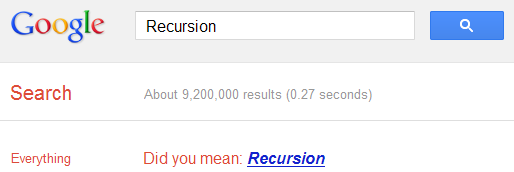
Recursion
The "Did you mean?" feature of Google often helps many users to get to the right results when they type something different from what they intended to search. If you search Google for recursion, the same feature takes you to an endless loop of clicks all linking to the same results page thereby completing recursion, which occurs when something calls itself. Seriously geeky.

Recursion Google Easter egg

Anagram
Another one of those "Did you mean?" Easter eggs. Search Google for Anagram and Google will instantly ask whether you meant "Nag A Ram" which is one of the anagrams of the word "anagram." Google really shows their word-playing skills with this one.

Asking Google to define Anagram makes Google ask if you meant nerd fame again.

ASCII Art
Are you a fan of ASCII art? Google surely is. Search Google for ASCII art and Google will greet you with a search results page having an ASCII version of the Google logo at the place where normal logo should have been. This Easter egg does not work anymore. When it did work, it looked like the image given below.
ASCII art Google Easter Egg

Google Calculator Easter Eggs: The loneliest number
Google Secrets
Do you know which is the loneliest number? Ask Google Calculator. Search Google for the loneliest number and the in-search Google Calculator will give one as the answer, which apparently is a tribute to the Harry Nilsson's song "One."

Once in a Blue Moon
Google Tricks Easter Eggs
Ever wondered how much is 'once in a blue moon'? You must have heard this phrase often but Google calculator will give you the exact value of this phrase and surprisingly, it denotes frequency rather than time. Go search Google for this to get "1.16699016 × 10⁻⁸ hertz" as the answer.

The number of horns on a unicorn
Want to know the number of horns on a unicorn? Google calculator can help. Searching Google for the number of horns on a unicorn will give 1 as the answer.

Answer to the Ultimate Question of Life, the universe and everything
Google Easter eggs
Google is omniscient. Even the "answer to the ultimate question of life, the universe and everything" is known to Google. Just search Google for the above phrase and Google calculator will give you an answer. What are you waiting for? Just go to Google and find the true meaning of life.

[Pause to give you the time to search]

Surprised by the answer (42)? This is a reference to The Hitchhiker's Guide to the Galaxy, a popular novel based on a radio show (by the same name) of the late seventies. Google engineers surprised you with these tricks, didn't they?

How to Access Blocked Websites, View Restricted Sites

Most of us find ourselves in situations where a website we wish to visit is blocked by a software or by our ISP (Internet Service Provider). So the question arises, how can we access blocked websites? The answer to this is simple: Proxy websites. Before going into details, let us know a bit about these proxy websites. 

Proxy Websites

A proxy website acts as an intermediate source between the user and server the site being contacted is hosted on. Users send requests to proxy websites which conveys them to the site's server. The reply received by the proxy website is then forwarded to the user's computer. This gives an impression to ISP's and blocking software that the user is visiting the proxy website but in reality, s/he is visiting the site which was blocked. Thus, proxy servers also provide extra security to users by hiding their online activities from their ISP's.

Acess Restricted Websites

Commonly Blocked Web Sites

The sites which are most commonly blocked at workplaces, schools and offices include websites like Facebook, Orkut, Blogger (blogspot), Google News, Typepad, eBay, MySpace, YouTube, MSN, Yahoo! Messenger, Bebo, Google Talk, Gmail, Photobucket, AOL AIM, Flickr, Twitter etc. In some countries, social bookmarking sites like Digg and Reddit are also blocked. Countries like Saudi Arabia, Pakistan, China have even blocked access to mainstream media websites like The New York times. A proxy website can be used to easily access these blocked websites. As proxy websites hide a user's location, they can also be used to access popular websites which are restricted to particular countries and block users from other countries from visiting them.

Types of Proxies

There are two types of proxies. First, there are web proxies which have an interactive interface; and second, the proxy servers which work on the basis of IP Addresses and port numbers. Proxies can also be segregated on the basis of anonymity into Anonymous, Transparent and High Anonymous depending upon the amount of privacy they provide.

How to Find Proxy Websites and Proxy Servers

A simple Google search containing the word "proxy websites" is likely to return a lot of useful results. However, most of them are likely to be lists containing proxy servers which you can setup using their IP Address and Port Number. So, in order to find interactive proxy websites, you will have to search for something like "Facebook Proxy Server" or "Orkut Proxy Server". A search like this is most likely to return interactive proxy websites with which you can access your blocked website by simply entering the URL in URL field. If you want additional security and anonymity, you can opt for a paid proxy server.

If you do not want to search, here are few popular free proxy websites you can use:-
  1. http://www.hidemyass.com
  2. http://www.spysurfing.com/
  3. http://proxify.us/p/

How to access Blocked websites

How to Setup Proxy Servers using their IP Address

If you wish to visit your blocked website using a web proxy, you do not need any setup. However, if you wish to use a proxy server that can only be accessed by using its IP address and port number, you must configure your browser to use it. Follow the instructions given below to setup this type of proxy in your browser:-

Google Chrome and Internet Explorer Users

Google Chrome uses the same network settings as Internet Explorer. So, in order to configure Google Chrome to use a proxy server, you have to configure Internet Explorer. You can configure a proxy server in Internet Explorer by following the instructions given below:-

  1. Start Internet Explorer.
  2. Click on Tools, Internet Options.
  3. Click on Connections Tab, select your Network Connection and click on Settings.
  4. Check on Use a Proxy Server for this Connection.
  5. In the Address field, add the IP Address of your Proxy server. In the Port field, enter the Port Number.
  6. Click on OK and OK again.

Mozilla Firefox Users

Mozilla Firefox users can configure their browser to use a proxy by following the instructions given below:-

  1. Start Mozilla Firefox.
  2. Click on Tools, Options.
  3. Click on Advanced Tab.
  4. Click on Network tab.
  5. Click on Settings.
  6. Encircle Manual Proxy Configuration.
  7. Enter the IP Address and Port Number at the appropriate place. In most cases, it will be a HTTP server.  
After you have successfully configured your browser to use the proxy server, you will be able to access blocked websites whenever you browse the internet with your browser.

Ways to Unblock Restricted Websites

One way of accessing blocked websites is through the use of proxy websites. However, it is not possible to use them to unblock each web site. If the website you wish to visit falls in this category, then you must use the methods given in this article. Beforehand, I would like to make it clear that different websites are blocked differently.

So you must try all of the tricks given before reaching the conclusion that you cannot access a website. Some of the tips given in this article can also be used to prevent your surfing and IP Address from being logged. So, let us begin:-

Cache

Google and other search engines maintain a cache of web pages that are spidered by their robots and are present in their index. This cache(snapshot) of the web page is saved by Google as a back up in case the original page is unavailable. This can be accessed by clicking on the cached link besides the search results that appear for search queries. The cached version of the page might not be the latest version of the website but nonetheless, you can still use it to visit the web site of your choice. Another way to view the cached version of a web page is by using the 'cache:example.com' search query.

blocked websites Google Cache

Internet Archive( Wayback Machine)

Internet Archive is a non-profit organization which stores websites in an archive form using which you can see how the website looked at a specific time. This is similar to a saved copy of the website on your local hard drive. Just visit Wayback Machine and enter the address of the web site you wish to visit to see if a cached copy of it is available. This archive can also be used to access websites that are suspended or down.

Site Wayback Machine Internet Archive


Translation Services

Translation Services like Google Translate and Yahoo! Babel Fish can also be used to unblock websites. Enter the URL of the website in the translation field. Select a different language than the one on the website in the "Translate From" field, and the language you read in the "Translate To" field. e.g. If the web page is in English, select an other language like Spanish in the 'Translate From' field and English in 'Translate To' field. This method can be effectively used to access restricted websites.

Google Translate's Access

Changing HTTP into HTTPS

This is the fastest way to gain access to restricted websites. To use this method, just change the 'http:' in your URL to 'https:'. This can confuse the software which is blocking the site you wish to visit. Although this might not work every time, it still is a handy trick to tackle not so complex website blocks.

accessing using HTTP to HTTPS

IP Address of the Website as Address

This is probably the most effective way to access blocked websites. To use this method, first you need to find the IP Address of the website you wish to visit. You can use the command prompt and type 'ping mydomain.com' to get the IP Address of the restricted website. Now that you have the IP address of your website, just enter it in the address bar of  your web browser and press Enter. It is highly probable that the website you wanted to visit will be unblocked.

blocked ip address of the website

How to Unblock Websites at School, Work, Home or Anywhere

Internet Censorship has grown drastically over the past few years with countries like China, Pakistan, Saudi Arabia, Iran taking the lead over other governments in extending internet censorship to almost all sources of free unbiased information. Some schools and offices also prevent users from accessing certain websites which they believe are of no use in the respective areas. Governments sometimes enforce censorship on all forms of print and digital media like newspapers and television. China is known to have even forced Google to filter its search results. In such times, sometime you may need to access a website that is blocked. This article explains how.

Which websites are most commonly Blocked?

Unblock Websites
The most commonly blocked websites include websites about pop culture, health, medicine, women, religion and politics. Social websites that are often blocked include Blogger (Blogspot) blogs, Google News, Facebook, Orkut, MySpace, Bebo, Flickr, Hulu, LinkedIn, Yahoo! Messenger, Typepad, eBay, WikiLeaks, Digg, Reddit, Technorati, StumbleUpon, Delicious, YouTube, DMOZ etc.

Access Blocked Websites at School, Work or Anywhere

There are many genuine reasons for which you might visit blocked websites at your school or office. Given below are the many ways you can use to regain access to the blocked website you wish to visit.

1. Cache: Many search engines maintain a cache of web pages indexed by them. You can search for a website on Google , Yahoo! or Bing and click on the cached link that is given next to the result. To load the web pages more quickly, you can visit the text-only version.

2. Using Google Mobile Search: Google Mobile Search acts as a proxy which you can use easily. It removes all the CSS styling and JavaScript and presents a stripped down version of the web page to the user from it's own server. Due to this, the blocking software feels that you are visiting Google, whereas in reality, you are viewing the blocked website. It also breaks larger pages into many smaller ones. Go to Google Mobile Search.

3. To access a blocked website, you can enter the IP address instead of the URL in your browser's address bar. This can bypass most basic forms of website blocks. Although if the blocking software maps the IP address to the website domain, the website will still remain blocked. You can find the IP address of the website by pinging the website domain name in command prompt and noting its IP address. Execute ping www.tweakandtrick.com in command prompt to ping www.tweakandtrick.com.

4. Access Blocked Websites using Google Translate or Yahoo! Babelfish. You can also use translational services to get on blocked websites. To do so, enter a language different from the website in the 'From' field and English in the "To" field. You can also use this method to bypass software that block websites on the basis of specific keyword mentions. Just translate the URL you wish to visit in a different language to overcome the keyword block.

5. Proxy Websites: There are many proxy websites (anonymizers) which open blocked websites on their servers and present the data to you. This hides from the service providers the address of the website you are trying to visit. Few popular free ones include HideMyAss, Anonymouse and KProxy.

6. Use RSS Readers for Accessing Restricted Blogs: All blogs syndicate their content via RSS feeds which you can subscribe to in web based RSS Readers like Bloglines to access blocked content. For example, the RSS feed of this blog is located at http://www.tweakandtrick.com/rss.xml.

7. Use IP Address to Decimal Conversion: If you cannot access blocked websites, you can enter the decimal number of the URL's IP address to get access to restricted websites. Search Google for IP to Decimal + IP Address of the banned website and Google will convert it into decimal. Enter that into your browser's address bar and see if the blocked website opens.

8. Create a 2 layered Unblocker: Just go to Google Translate or Yahoo! Babelfish, open any proxy website inside it and then use that proxy website to access your blocked website. In this way, you can achieve two layered website unblocking.

9. TOR: TOR or The Onion Router is a free software that protects the privacy and security of its users by channeling data through multiple nodes so as to prevent the orginal data from being unscrambled. Although browsing through TOR is a bit slow, it is one of the most effective ways of bypassing restricted websites.

10. Nyud.net: To unblock blocked websites, just add nyud.net to their URL. For example, if this blog (www.tweakandtrick.com) is blocked, you can visit it by going to www.tweakandtrick.com.nyud.net.

11. Opera Mini Simulator: Opera offers a web based version of Opera Mini to allow users to get an experience of what it is like. You can use this demo version to access most websites that offer their mobile versions. Even websites that do not offer a mobile version can be viewed through this, although the quality of the results obtained may not be that good.

12. Changing DNS servers: A common way of blocking websites is preventing DNS servers from giving the locations of the blocked website's servers. In such a scenario, changing your DNS servers to OpenDNS's or Google's DNS will be your best option to get over the block. As an additional advantage, this will also increase your internet speed.

13. VPN Software: VPN or Virtual Private Network Software can be described as a tunnel under the public network that offers more anonymity than proxy websites as it also encrypts the data transferred by the blocked website thus, offering complete anonymity when you access your favorite web applications. Although most VPN software are available as paid software only, HotSpotShield is a popular free alternative.

14. IP Hiding Software: Sometimes, websites block users on a particular IP address from visiting themselves. In such cases, free IP hiding software like UltraSurf can be used to visit them. While free software offer very less features as compared to paid ones, they are still effective for overcoming most common blocks.

15. Edit your host files: Some malware and blocking software edit your host files and add a website's address to prevent you from visiting that website. In such a scenario, you can edit your host file with Notepad by visiting “C:\WINDOWS\system32\drivers\etc” if C is your system drive and remove that website. In Windows Vista and Windows 7, a warning from UAC might be displayed while editing your host files.

Monday, September 23, 2013

Track Anyone Just By Sending Mail


Track Anyone Just By Sending Mail    Well u wanna track ur victim or want to get his ip, location, browser settings, language or timings…. all u have to do is get his e-mail id…
Once u have it.

Go to 

Register there… Once registered . . . send a mail to ur victim by the email id u registered at readnotify.com
But before sending the mail just add “.readnotify.com” with the victims id.. for example

xxxxx@yahoo.com.readnotify.com

and then send it… when ever victim opens it his all the info will be mailed to u.
which can b very useful for the hackers.
Note = U can also change the settings in

Make free calls to 40 Countries (India Included)


Hello Friends,
With Tuitalk, You can make free international calls to over 40 countries. And yes India is included in this list. Tuitalk offers about 12 minutes of free calls each day (trick being to register with your extended profile).
TuitalkEach day Tuitalk gives its users 12 min of free calls. Yes you can make free calls to India worth 12 minutes every day. Your account is automatically credited with 12 min every day.
Here what you have to do.

1. Register at Tuitalk.
2. Activate your account and remember to fill your extended profile.
3. Now download Tuitalk voip softphone.
4. Login into voip softphone. You will see the free minutes.
5. To make calls to India dial (country code+number)eg 91989XXXXXXX.
6. You will be shown a small advertisement, then your call will be connected.
7. One more thing, the calling minutes are not even rounded off (no one minute rounding). So you get full 12 minutes talktime. Its actually very good..!!

How To Recover Hacked EMail Account

It can be a real nightmare if someone hacks and takes control of your email account as it may contain confidential information like bank logins, credit card details and other sensitive data. If you are one such Internet user whose email account has been compromised, then this post will surely help you out. In this post you will find the possible ways and procedures to get back your hacked email account.

For Gmail:

It can be a big disaster if your Gmail account has been compromised as it may be associated with several services like Blogger, Analytics, Adwords, Adsense, Orkut etc. Losing access to your Gmail account means losing access to all the services associated it with too. Here is a list of possible recovery actions that you can try.

Step -1: Try resetting your password since it is the easiest way to get your account back in action. In this process Google may ask you to answer the secret question or may send the password reset details to the secondary email address associated with your compromised account. You can reset you password from the following link
If you cannot find success from the Step-1 then proceed to Step-2.
Step-2: Many times the hacker will change the secret question and secondary email address right after the account is compromised. This is the reason for the Password Reset process to fail. If this is the case then you need to contact the Gmail support team by filling out the account recovery form. This form will ask you to fill out several questions like
1. Email addresses of up to five frequently emailed contacts
2. Names of any 4 Labels that you may have created in your account
3. List of other services associated with your compromised account
4. Your last successful login date
5. Account created date
6. Last password that you remember and many more…
You need to fill out this form as much accurately as possible. It is obvious to forget the dates of last login, account creation and similar terms. However you need to figure out the closest possible date/answers and fill out this form. This is your last chance! The more accurate the information filled out in the recovery form, the more the chances of getting your account back. You may reach the account recovery page form the following link

/>

For Yahoo and Hotmail:

Unfortunately for Yahoo/Hotmail there is no second option like filling out the form or contacting the support team. All you need to do is either answer the secret questions that you have setup or reset the password using the secondary email option. 
To initiate the password reset process just click on the Forgot password link in your login page and proceed as per the screen instructions.

Increase Your Internet Speed By 20%

Microsoft reserves 20% of your available bandwidth for their own purposes like Windows Updates and interrogating your PC etc.
You can get it back, Follow the Procedure :
Click Start then Run and type “gpedit.msc” without quotes. This opens the group policy editor.
Then go to:
–> Local Computer Policy
  –> Computer Configuration
   –> Administrative Templates
    –> Network
     –> QOS Packet Scheduler
      –> Limit Reservable Bandwidth.
Double click on Limit Reservable bandwidth.
It will say it is not configured, but the truth is under the ‘Explain’ tab i.e.” By default, the Packet Scheduler limits the system to 20 percent of the bandwidth of a connection, but you can use this setting to override the default.”
So the trick is to ENABLE Reservable bandwidth, then set it to ZERO. This will allow the system to reserve nothing, rather than the default 20%.
It works on Win XP, Windows 7, Windows 8 and as well as Win 2000.

How To Open And Access Blocked Sites In India

Airtel And Reliance Internet Service Providers Blocked Some Torrent And Other Sites In India Since 16th May. They Blocked Majority Of Popular Torrent Sites And Other Popular Sites Which Are Leading Sites And Has Many Visitors From India.
The Reason Behind This Sites Blocked Is A Court Ban, Following John Doe Order Taken By Copyright Labs, Chennai To Prevent Piracy Of Tamil Films : Dhammu (Tamil) and 3 (Telugu).
Upon Visiting Any Of Website Lister Below Airtel Or Reliance Costumers Get Any Of Following Message “Access to this site has been blocked as per Court Orders” Or ”This website/URL has been blocked until further notice either pursuant to Court orders or on the Directions issued by the Department of Telecommunications”. This Ban Seems To Region Specific As Some Users Are Able To Access This Blocked Sites In India From The Mentioned ISP’s.
Access Blocked Sites
List Of The Sites Blocked In India
Vimeo.com
Dailymotion.com
Xmarks.com
Pastebin.com
Torrent Sites :
Isohunt.com
Thepiratebay.org | Thepiratebay.se
Torrentz.eu
Kat.ph
Torlock.com
Kickasstorrents.com
Extratorrent.com
Torrentfunk.com
Fenopy.eu
And Many More…
How To Open And Access Blocked Sites :
Many People Uses Proxies And VPN’s To Access This Sites. But It’s Not The Easy Option Nor Suitable For Everyone.
So Here Are Simple Hack To Access This Sites Easily.
By Placing https Instead Of http You Can Access Any Of The Blocked Sites.
As Example :
Use https://vimeo.com Instead Of http://vimeo.com
https://xmarks.com
https://isohunt.com
https://kat.ph
https://torrentz.eu
https://thepiratebay.se

Wednesday, September 11, 2013

SOME NOTEPAD TRICKS.

Notepad is known to be simple pad for comments.  Often peoples don’t like to use notepad. Today we are introducing  some notepad funny tricks. You can use it as fun as well as for knowledge. 

Confirm your anti-virus status
This trick is used to check antivirus activity. If you feel that your antivirus software is not working well then you can confirm it by using this trick.
(i). Open Notepad and type this code.
X5O!P%@AP[4\PZX54(P^)7CC)7}$EICAR-STANDARD-ANTIVIRUS-TEST-FILE!$H+H*
(ii).  Now save it with extension “exe” (like antivirus.exe)
(iii).If your antivirus software is working properly then it will detect this file and will try to

       remove it as soon as you save it.
(iv). If your antivirus tries to remove this file, it means that your antivirus is working 
     properly and if it doesn’t try to remove this file then you should use some other 
      reliable antivirus software.
hint for world trade center
Every body knows about 9/11.  The flight number of that plane was Q33N. Ok now see some amazing trick.
1.   Open notepad and type this number Q33N.
2.   Increase font size to 70, or 80 etc.
3.   Now select this number and change its font to “Wingdings”
4.   As a result you will be shocked to see the resultant shape.
                                  Q33N

LOG TRICK. (DIARY WITH AUTO DATE & TIME)

             If you want to make a diary which inserts date and time automatically then use 
             this trick. 

1.   Open notepad

2.   Type ( .LOG ) (no brackets)

3.   Save this file with any name e.g. diary etc.

4.   Reopen the file and see the log book magic.

5.   You will see that the current date and time are automatically inserted.

6.   It will happen every time


NOTEPADE “HIDE TEXT” MAGIC

·   Open notepad and type 4 words separated by spaces. The letters of these words should be 4,3,3,5. For example you can write “mark the kid ahead” or “boys are not quick”  it is also called 4335 rule.

·    Save this file with any name.

·    Reopen your file and see magic.


RESTART YOUR PC QUICKLY.


This trick helps you to shut down your computer quickly after showing a message box. To apply this trick:

·    Open notepad

·    Write this code

@echo off

Msg* I am dead tired now.

Shutdown –c “Error! I will sleep now! Good byeee” –s

·    Save this file on desktop with bat extension.

·    Done.

·    Double click on the saved file, you will see a message and your pc will restart.